

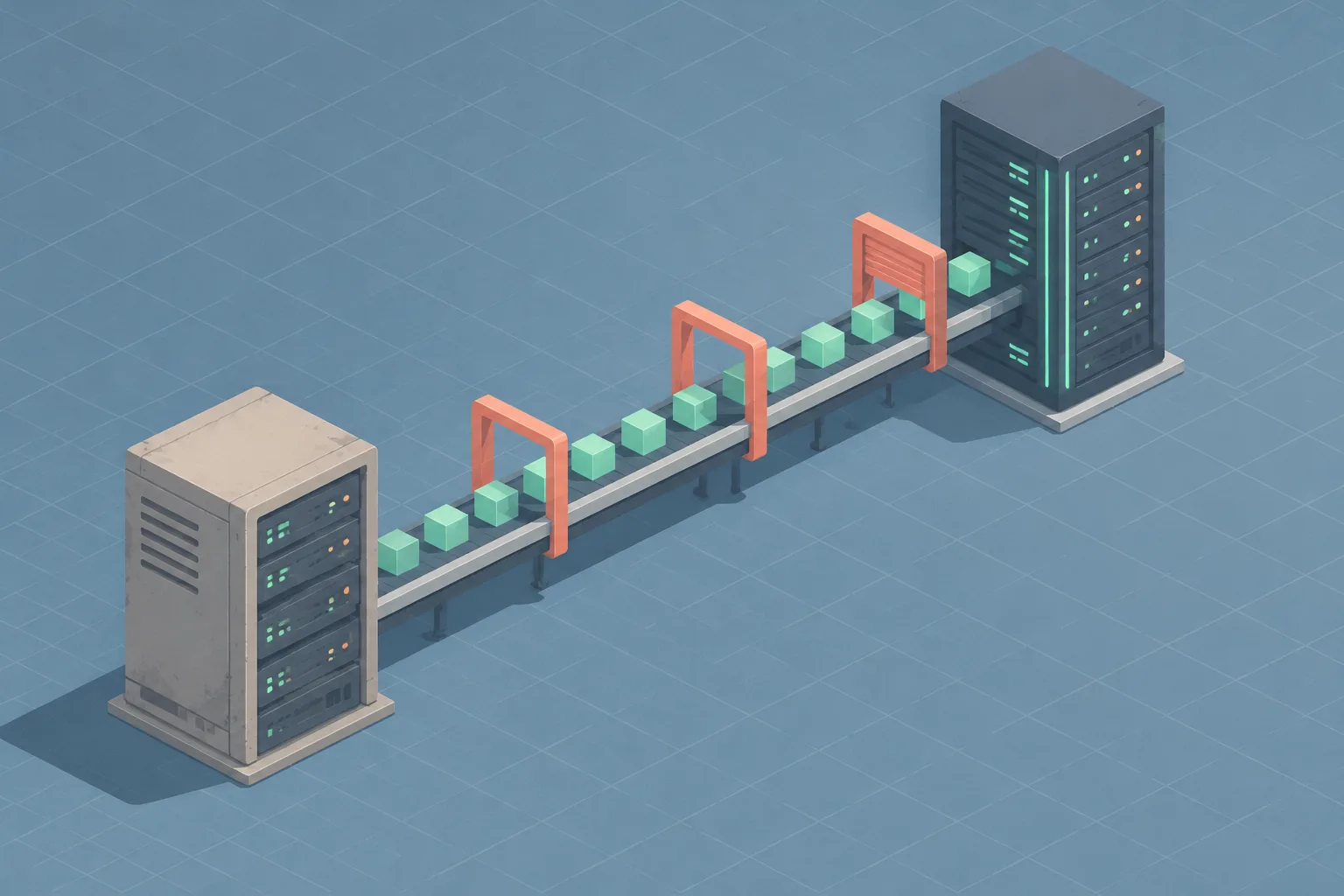
WordPress migrations have a reputation problem, and it is largely deserved. The stories circulate in developer forums and agency war rooms: the DNS change that propagated before the database finished importing, the permalink structure that broke forty thousand indexed URLs, the checkout page that threw 500 errors for six hours on a Saturday. The common thread in nearly every disaster story is the same, and it has nothing to do with server speed or plugin quality. The migration was treated as a single event, a switch to be flipped, when it is actually a sequence of steps that must happen in a precise order, with the old site serving traffic until the moment the new one is verified ready.
Zero-downtime migration is achievable. It is also tedious, and the tedium is the point.
What Downtime Actually Means in This Context
Strictly speaking, a migration with literally zero seconds of unavailability is rare for small teams, because DNS propagation alone introduces a window where some resolvers point at the old server and some at the new. What most people mean by zero downtime is something narrower and more practical: no visitor ever sees an error page, a broken layout, or a failed checkout. Requests either hit the old site or the new site, and both serve a fully working experience.
That definition matters because it changes the engineering approach. The goal becomes running two complete, functional copies of the site in parallel and shifting traffic between them, rather than swapping one for the other and hoping.
The Uncomfortable Role of TTL Settings
Every DNS record carries a TTL, a time-to-live value measured in seconds that tells resolvers how long to cache the answer. Many hosts default to 3600, sometimes 14400. A record with a four-hour TTL means that even after the change is made, a meaningful share of the internet will keep sending visitors to the old server for up to four hours.
The fix is unglamorous and must happen days in advance: lower the TTL on the relevant A records and CNAME entries to something like 300 seconds, then wait out the old TTL period before making any changes. Skipping this step is the single most common cause of the "half my traffic is on the wrong server" problem, and it cannot be fixed after the fact. The old TTL has to expire on its own schedule.
Standing Up the New Environment Without Touching the Live One
The new host gets provisioned first, completely separately. A staging domain or a hosts-file override handles access during this phase. The WordPress files go up, the database gets imported, plugins and themes get installed at matching versions. The site should be fully browsable at this point, just not at the public address.
Two details get skipped constantly. First, the WordPress Address and Site Address settings in the database or wp-config.php must match whatever URL is being used for testing, or the admin panel will redirect in loops. Second, object caching and page caching must be flushed or disabled during the test phase, because a stale cache on the new server will show content that does not exist and send everyone chasing phantom problems.
A third detail, less obvious: uploads and any files outside the database need to move too. The wp-content/uploads folder is the usual culprit. A database import that finishes in eight minutes says nothing about whether the media library survived.
Freezing the Content Before the Final Sync
Here is where the sequence gets genuinely tricky, and where most rushed migrations break. The database was copied at some point, but the live site kept accepting new posts, comments, orders, and user registrations during the copy. Those changes exist only on the old server.
There are two honest ways to handle this. The first is a maintenance window, a short freeze on publishing and checkout while a final database sync runs, usually measured in minutes rather than hours. The second is a proper incremental sync using a migration plugin that tracks changes and replays them, which is more complex but avoids the freeze entirely. For a brochure site, the freeze is fine. For a store processing orders, the incremental approach earns its complexity.
Either way, the final sync happens with the old site still live and still serving. Traffic has not moved yet. The new site is now a byte-for-byte match of the old one, sitting idle on a server nobody is visiting.
The Verification Pass Before Traffic Moves
Before the DNS switch, the new site gets tested through a hosts-file override or a temporary domain, which lets a browser resolve the real domain name to the new server's IP without changing anything publicly. This is the last chance to catch problems while the old site is still the one the world sees.
The checklist is specific: log in to wp-admin, submit a contact form, run a test transaction if WooCommerce is involved, check that permalinks resolve, confirm SSL is valid, verify that redirects from old URLs land correctly, and open the site on a phone. A migration that looks perfect on a desktop can fail at the cart on mobile.
One more test that gets forgotten: email. Contact form submissions, password resets, and order confirmations all depend on the new server being able to send mail. A site can look flawless and silently drop every notification.
Switching DNS With the Old Server Still Standing
The DNS change happens now, and the old server stays up. This is the detail that separates a calm migration from a panicked one. With the low TTL set earlier, most resolvers pick up the new address within minutes, but some lag. During that window, visitors split between two servers, and both need to work.
Because the old server still has a complete copy of the site, lagging visitors see a working page. They might post a comment that lands on the old database and never reaches the new one, which is a minor problem compared to an error page. The old server stays live for at least the duration of the original TTL, often a full day, before being decommissioned.
The Search Console and Analytics Cleanup
Once traffic has fully moved, a handful of housekeeping items prevent weeks of confusing data. Google Search Console needs a new property verification if the domain changed, or at minimum a fresh sitemap submission. Analytics tags need checking, because a migration that duplicates tracking scripts will double-count every session and make the traffic reports useless.
The sitemap and robots.txt deserve a direct look on the new server. A leftover staging directive in robots.txt that disallows everything will quietly remove the site from search results, and the damage takes weeks to reverse.
Why the Cheap Migration Plugins Fail on Large Sites
One-click migration plugins work beautifully on a site with a few hundred posts and a modest database. On a site with years of revisions, thousands of orders, and a media library measured in gigabytes, they time out. The PHP process hits max_execution_time, the import stalls halfway, and the operator is left with a partially populated database and no clear error message.
The workaround is command-line: WP-CLI's db export and db import, rsync for the uploads directory, and a search-replace run with wp search-replace to update serialized URLs. Serialized data is the trap here, because a naive find-and-replace on the database corrupts it. WP-CLI handles serialization correctly; a text editor does not.
What the Old Server's Final Day Looks Like
After the TTL window has fully passed and the new site has run clean for a day or two, the old server gets shut down. Before that happens, a final backup of the old database gets pulled and stored somewhere separate, because the moment the old server is gone, the previous state of the site is gone with it.
The old hosting account usually stays active for another billing cycle, then gets cancelled. The DNS records point at the new server. The migration is over. Nobody noticed it happen, which is the entire measure of success.
The discipline that makes this work is unglamorous: lower the TTL days early, keep both servers running at once, verify through an override before the switch, and let the old server absorb stragglers instead of killing it the moment DNS changes. None of those steps are clever. All of them are skipped routinely, which is why the disaster stories keep circulating.